 Timesheets
Web app guide
Use Timesheets in your browser
Works on any phone, tablet or computer, including iPhones. Log your week, check the PDF, then send it from your own email.
Create your account
- Open the sign-up page and enter your email and a password of at least 8 characters.Use an email you can open: it's how you reset a forgotten password.
- Tap Create account, then open the email we send you and tap the link, then Confirm and continue. This proves the email is yours. The link works for 48 hours. Not in your inbox? Check your spam or junk folder and mark it The link works for 48 hours; check spam if you can't find it.ldquo;Not spamThe link works for 48 hours; check spam if you can't find it.rdquo;.You then stay logged in on that device for 30 days.
- On your phone, add it to your home screen so it opens like an app: in Chrome tap ⋮ → Add to Home screen; in Safari tap Share → Add to Home Screen.
On the log-in page tap Forgot password?, enter your email, and open the link we send within 1 hour. Check your spam folder if it doesn't arrive.
First setup
The first time you log in, three short screens collect what goes on every timesheet.
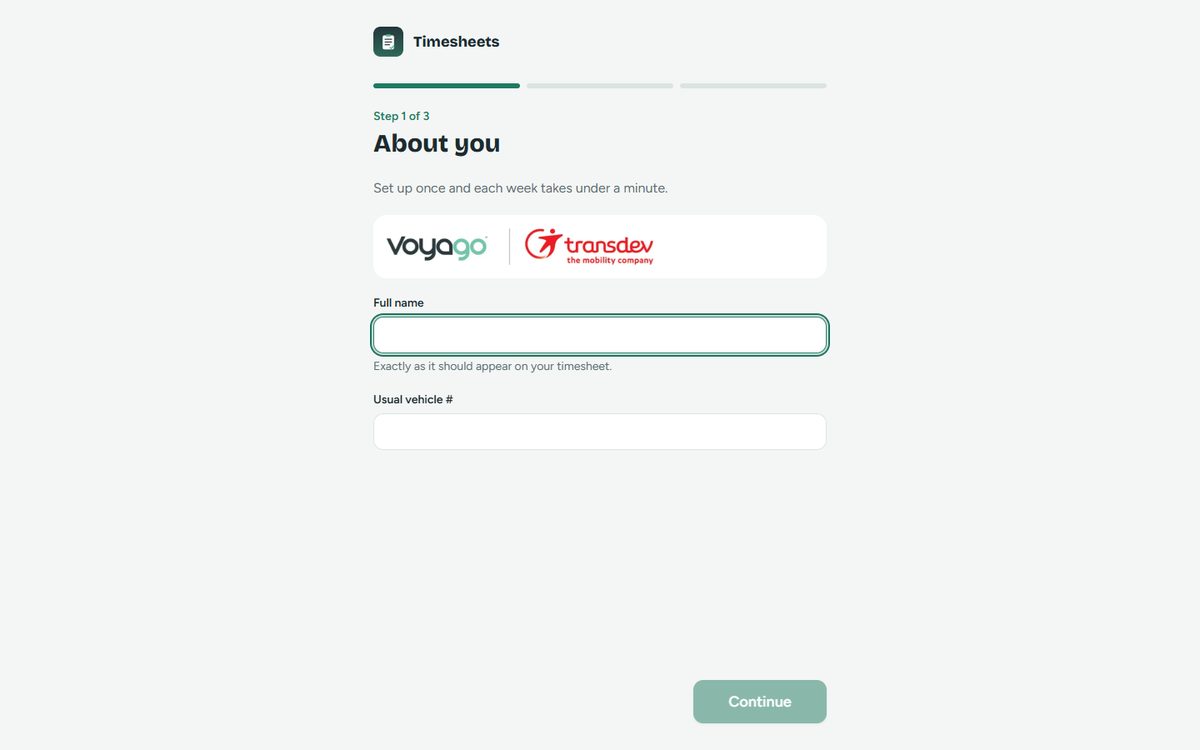
- About you: your full name exactly as it should appear on the timesheet, and your usual vehicle number.
- Your usual shifts: normal morning and afternoon times and your usual route. These pre-fill Monday to Friday. Finishing later than these times marks a late drop-off.
- Who gets your timesheet: filled in with Jyupi Patel (To) and Darren Blewitt (Cc). Change only if yours are different, then tap Get started.
Log your hours
Fill in each day after your shift, or the whole week at once. Everything saves as you type.
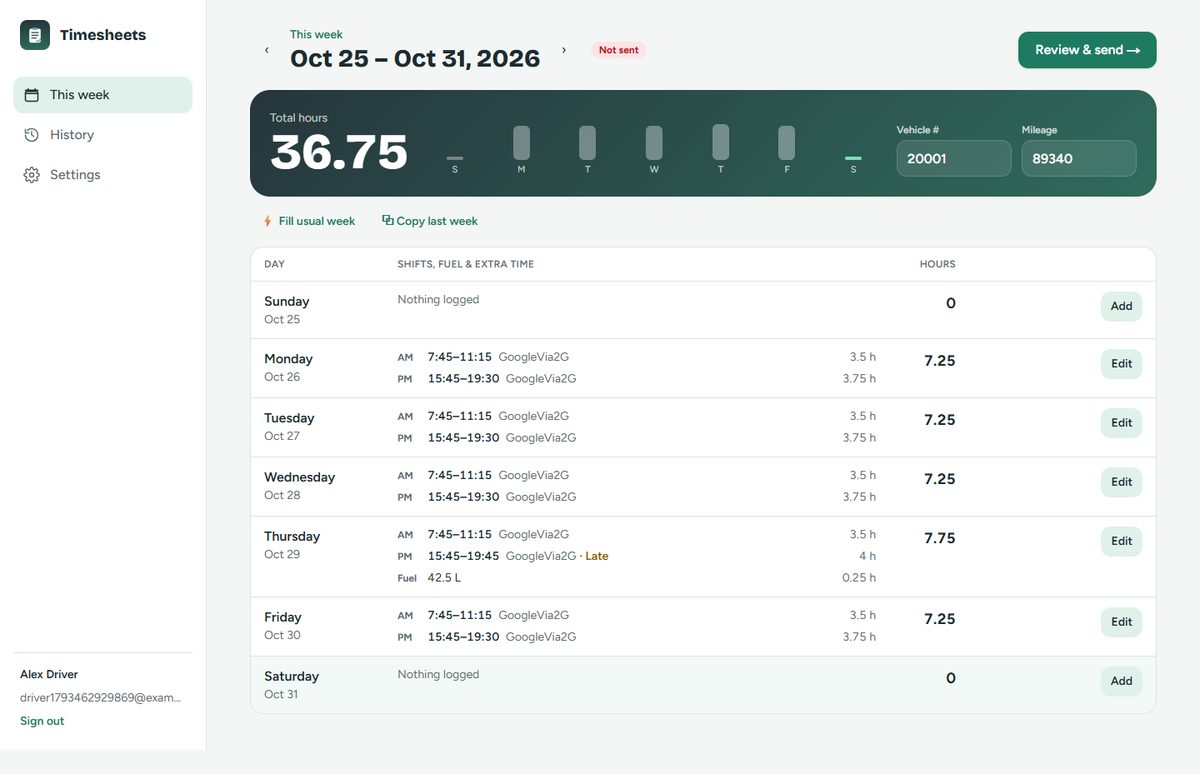
- Enter this week's mileage in the green card. You can't send without it.
- Normal week? Tap Fill usual week to fill every empty weekday, or Usual day on one day. Copy last week repeats the previous week (litres are left blank).
- Different day? Tap Edit (computer) or Edit day (phone). On a phone the editor slides up from the bottom; on a computer it opens on the right.
- In a day you can switch either shift off, pick its route, change the times, turn on fueling and enter litres, and add extra time (Cleaning, Training, Audit, Evaluation or your own label) with a note."Late drop-off" switches on by itself when you finish later than usual. Switch it off if it doesn't apply.
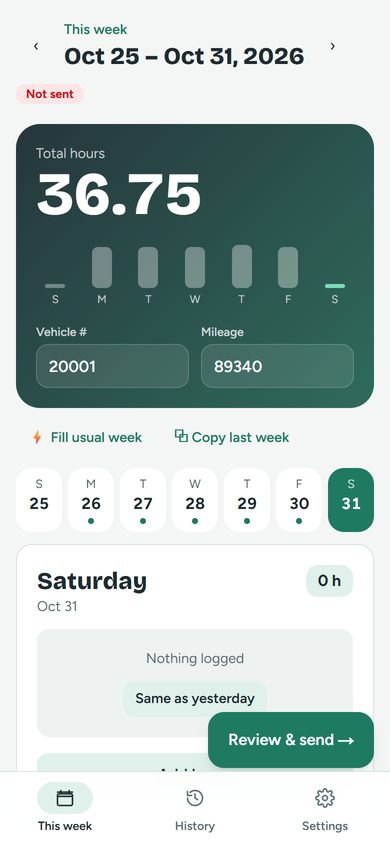
Use the arrows beside the week's dates to go to last week or to fill in a future week ahead of time. On a phone, tap a date in the row of days to switch day.
Send on Friday
Tap Review & send. The page shows the timesheet exactly as it will look, the checks, and the email.
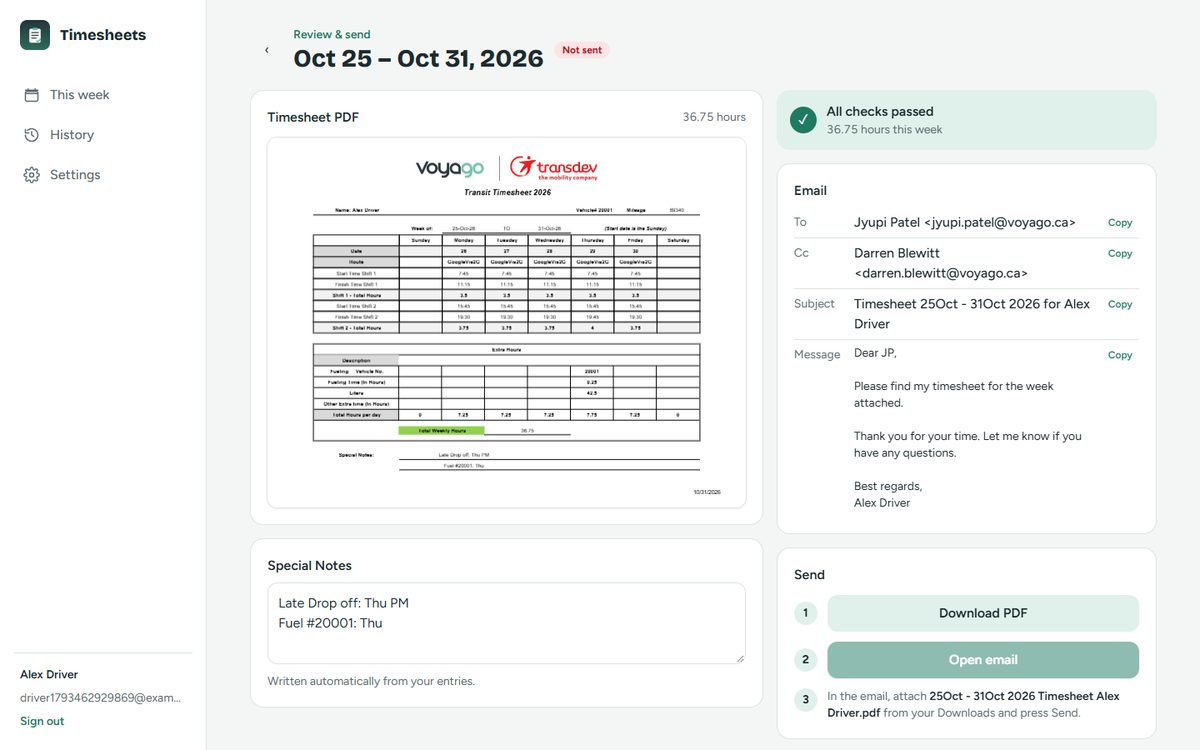
- Fix anything in red (tap an item to jump to that day). Yellow items are only things to double-check; tick I've checked these.
- Tap Download PDF. It's saved with the usual name, e.g.
25Oct - 31Oct 2026 Timesheet Your Name.pdf. - Tap Open email. On a computer, Gmail opens in a new tab with To, Cc, subject and message filled in. On a phone, your email app (Gmail) opens the same way.
- Attach the PDF and press Send. On a computer, drag the downloaded file into the Gmail window or use the paperclip. On a phone, tap the paperclip and pick the file from Downloads (Android) or Files (iPhone).
The week is marked Sent when you tap Open email. If you close the email without sending, come back and tap Open email again. If you change hours after sending, the week shows Edited after send.
Where your data lives
In your browser
Every week you log is stored in the browser you use. That's what History shows.
On your account
Your profile and the table data of your latest 4 weeks are backed up. Log in on a new phone or computer and they come back. No PDFs are stored.
Full backup
In Settings → Your data, Download full backup saves every week to a file you can restore later.
Delete your account
In Settings → Account, type DELETE to remove your account, its backup, and this browser's data.
Problems & answers
"Confirm your email first" when logging in
Your account isn't confirmed yet. We've just emailed you a fresh link: open it and tap Confirm and continue.
The reset email didn't arrive
Check spam and wait a few minutes. You can request up to 3 links an hour. Each link works once, for 1 hour.
"Too many attempts" when logging in
After 10 wrong passwords, logging in pauses for 15 minutes. Use Forgot password? instead.
A yellow "Offline" bar appears
Your changes are still saved in the browser. They back up to your account when the connection returns.
Open email opens the wrong app on my phone
Your phone uses its default email app. Set Gmail as the default, or copy To, Cc, Subject and Message with the Copy buttons on the Review page.
I use both the Android app and the web app
They don't sync with each other. Pick one for each week so the timesheet isn't sent twice.