 Timesheets
Android app guide
Install and use the Android app
Log your shifts, fuel and extra time on your phone through the week. On Friday the app builds the Transit Timesheet PDF and opens Gmail with everything attached.
Install the app
The app isn't on the Play Store, so you install it from the file you were sent. Android will ask you to confirm a couple of times. That's normal for apps installed this way.
- Download the app on your phone. Tap Download APK (or the button at the top of this page) on your Android phone.It's about 67 MB, so Wi-Fi is best.
- Tap the downloaded file. Open it from the download notification, or from My Files → Downloads.
- Allow installs from that app if asked. If you see "For your security, your phone is not allowed to install unknown apps from this source", tap Settings, switch on Allow from this source, then press back.This only allows the app you opened the file with (for example My Files, Chrome or WhatsApp). You can switch it off again afterwards.
- Tap Install. If Google Play Protect warns about an unknown developer, tap More details → Install anyway.
- Open Timesheets. The icon is a clipboard with a green tick.
Make sure the Gmail app is installed and signed in to the email account you normally use for your timesheet. The app sends through Gmail, so the email comes from your own address.
First setup
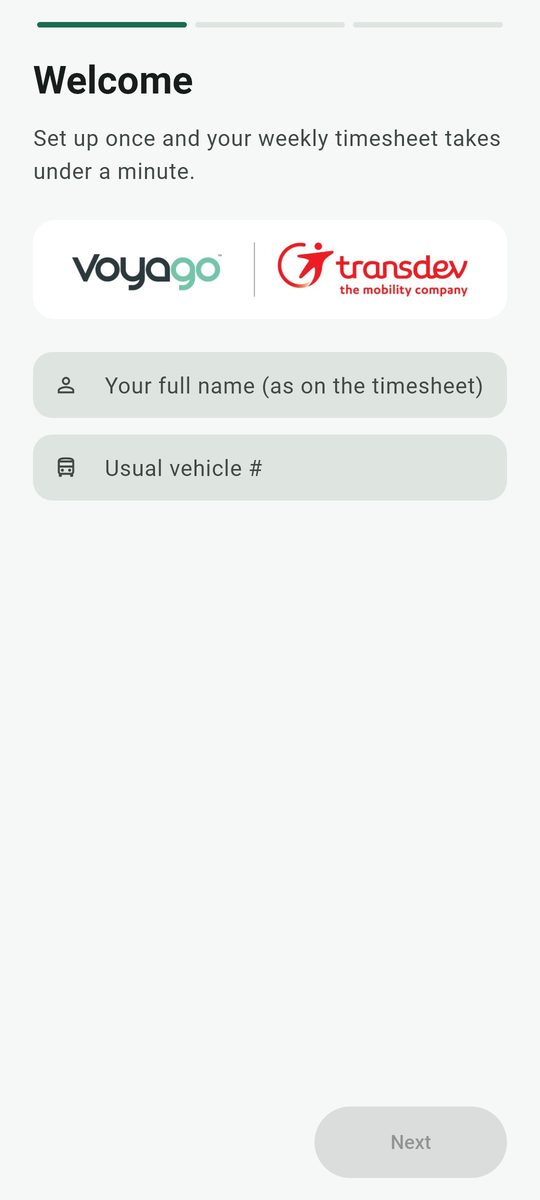
- Welcome. Enter your full name exactly as it should appear on the timesheet, and your usual vehicle number.
- Your usual shifts. Set your normal morning and afternoon start and finish times and your usual route. These pre-fill Monday to Friday, and you can still change any day.The finish times also matter for late drop-offs: finishing later than your usual time marks that shift as a late drop-off.
- Who gets your timesheet. This is already filled in with Jyupi Patel (To) and Darren Blewitt (Cc). Change it only if yours are different.
- Tap Get started, then tap Allow when Android asks about notifications. This is how the reminders reach you.
The email starts with "Dear JP," and is signed with your name. To change the wording, go to Settings → Email.
Log your hours
Log your hours whenever suits you: after each shift, at the end of the day, or the whole week at once. Everything saves as you type, and you can even fill in a future day ahead of time.
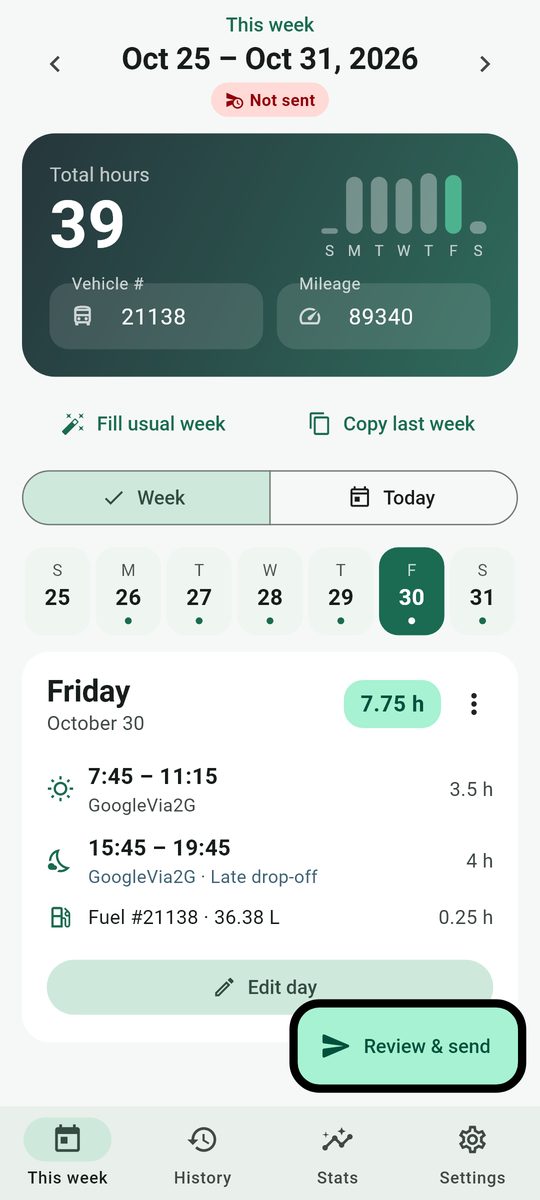
- Enter this week's mileage in the green card at the top. You can't send the timesheet without it.
- Normal day? Tap Usual day on that day's card. Both shifts are filled in from your setup.Fill usual week does every empty weekday at once. Copy last week copies the previous week.
- Different day? Tap Edit day and change only what's different.
Swipe the day card left or right, or tap a date in the row of days, to move between days. A dot under a date means that day has hours.
Inside a day
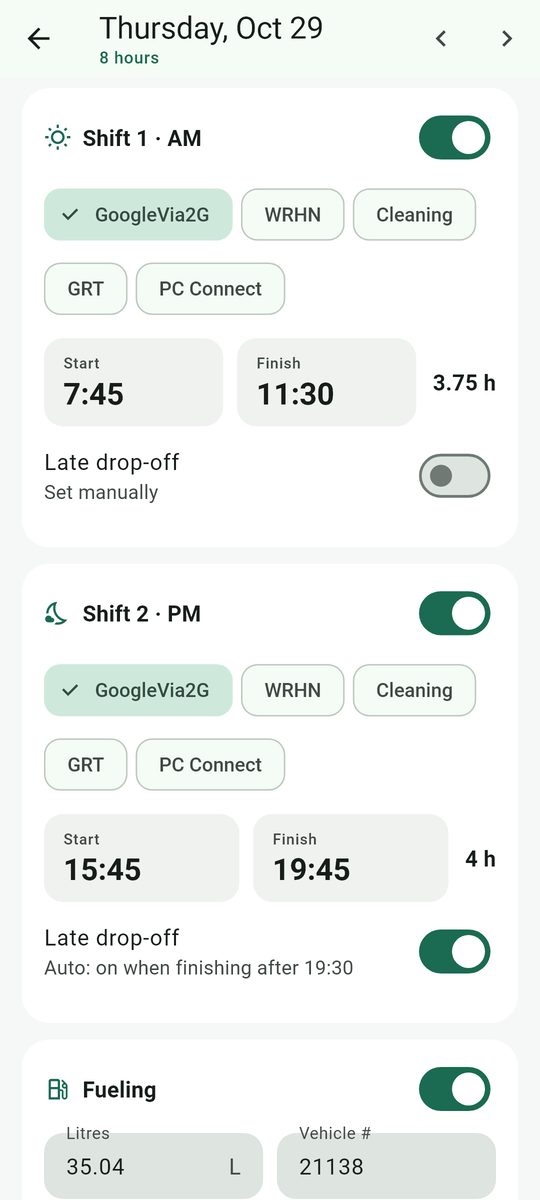
- Shift 1 (AM) and Shift 2 (PM): switch a shift off if you didn't work it. Pick the route for each shift (GoogleVia2G, WRHN, Cleaning, GRT or PC Connect) and tap a time to change it.
- Late drop-off switches on by itself when you finish later than your usual time, and appears in the notes as "Late Drop off: Thu PM". You can switch it off for any shift.
- Fueling: switch it on and enter the litres. Fueling time defaults to 0.25 h. You can also tap Add receipt photo to keep a photo of the receipt.
- Extra time covers anything outside your shifts: Cleaning, Training, Audit, Evaluation, or Other with your own label. Each entry has hours, an optional note, and an Add to Special Notes switch, which puts a line such as "Training: Wed (new hire)" on the timesheet.
Shift hours, daily totals, the weekly total and the Special Notes (late drop-offs, fuel days, cleaning) are all worked out for you.
Send on Friday
The timesheet is due Friday night. Sending takes about 30 seconds.
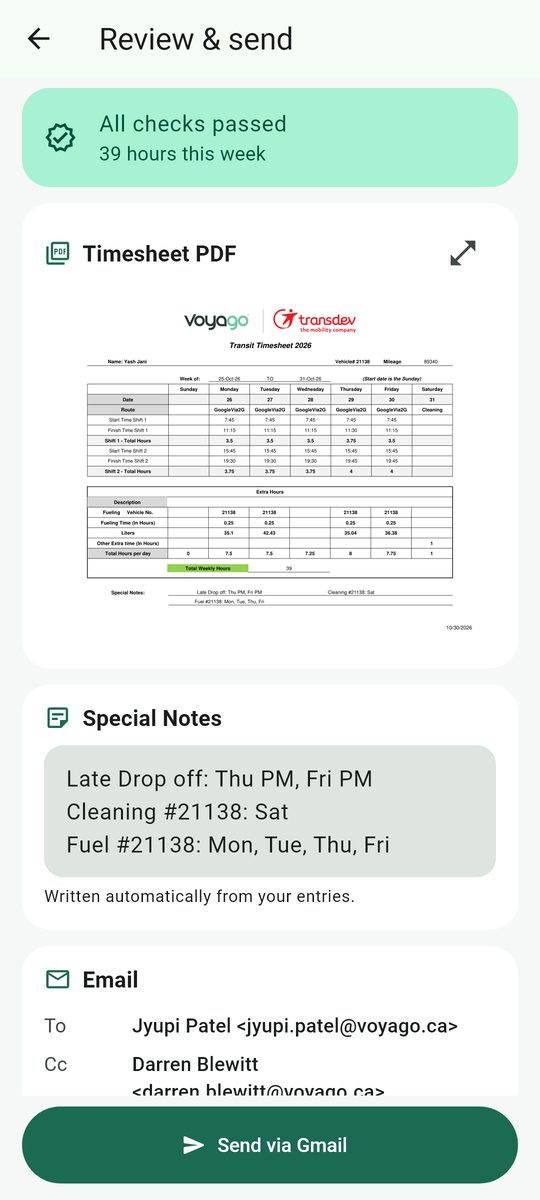
- Tap Review & send at the bottom of the This week screen.
- Fix anything in red. Missing mileage, a finish time before a start time, or fuel without litres has to be fixed first. Tap a problem to go straight to that day.Yellow items are only things to double-check, such as a 15-hour day or a lower mileage than last week. Tick I've checked these to carry on.
- Look over the PDF. Tap the expand icon to see it full screen. You can also edit the Special Notes here.
- Tap Send via Gmail. Gmail opens with the recipients, subject, message and PDF already attached.
- Tap Send in Gmail. That's the step that actually sends it. Check your Gmail Sent folder if you're not sure.
The app marks the week Sent as soon as Gmail opens, and that stops the reminders. If you back out of Gmail without sending, open Review / re-send and send again. If you change hours after sending, the week shows Edited after send so you remember to send the corrected version.
Reminders
Reminders stop as soon as that week is sent. You can turn them off in Settings.
| When | Times | Only if |
|---|---|---|
| Sunday to Thursday, and Saturday | 10:00 PM | nothing is logged for that day yet |
| Friday (deadline) | 8:00, 9:00, 10:00, 10:30, 11:00, 11:30, 11:45, 11:50 PM | the week hasn't been sent |
To make sure reminders always arrive, go to Settings → Apps → Timesheets → Battery and choose Unrestricted.
History, backup & widget
History
Every week you log is kept. Open one to see its PDF, re-send it, edit it, or use it as a template for this week. A warning icon marks a past week that was never sent.
Stats
Hours this week and month, hours per week, fuel per week and mileage. Add your hourly rate in Settings to see an estimate of your pay.
Home-screen widget
Long-press your home screen → Widgets → Timesheets. It shows this week's hours, whether the week is sent, and a Log today button.
Back up your data
Everything is stored only on your phone. In Settings → Your data, tap Back up and save the file to Google Drive. Use Restore from backup on a new phone. Export CSV gives you a spreadsheet of all your hours.
Problems & answers
"App not installed" or the install button is greyed out
Check you have at least 200 MB free, then try again. If an older copy is installed that came from a different person's build, back up first, uninstall it, then install the new file.
Play Protect says the app is unsafe
Play Protect warns about any app that doesn't come from the Play Store. Tap More details → Install anyway. The app only talks to Gmail on your phone and doesn't send your data anywhere else.
Tapping Send doesn't open Gmail
Install Gmail from the Play Store and sign in. If Gmail is missing or disabled, the app shows Android's list of email apps instead. Pick one, and check the PDF is attached before sending.
I'm not getting reminders
Check that notifications are on: Settings → Apps → Timesheets → Notifications. Set the battery to Unrestricted, and check Reminders is switched on in the app's Settings. Opening the app once also refreshes the reminder schedule.
A shift shows "Late drop-off" but I wasn't late
Open the day and switch off Late drop-off on that shift. It won't switch itself back on. If your normal finish time has changed, update it in Settings → Usual schedule.
Something on the PDF is wrong
Change the hours in that day, or edit the Special Notes on the Review screen (Reset to auto brings back the automatic text). The PDF updates immediately.
How do I update to a newer version?
Install the new .apk on top of the old one, the same way as the first time. Your weeks and settings stay. Don't uninstall first, because uninstalling deletes everything on the phone unless you've made a backup.